Leave & Absence
Holiday requests and balances, absence and the Bradford Factor, flexible working, maternity, and SSP — all in one place.
Managing Leave
This guide covers everything around an employee being away from work — whether that's planned holiday, sickness, a flexible working change, or maternity leave.
Employees submit holiday and flexible working requests themselves through the Employee Portal. As Owner or Manager, you review and approve or decline them from the main app — covered below.
Leave Requests
Go to Time & Attendance → Approve Requests — every time-off and flexible working request waiting on a decision lives here as Time Off Requests, with a Pending count badge in the top corner.

Time Off Requests — each pending request shows the employee, leave type, and dates
Each request also carries a response deadline, shown as a coloured tag — green with days remaining, amber as a warning, and red with "Respond today" once it's due. This is calculated per request rather than fixed, so it's worth scanning for red tags first if there's a backlog.
Discretionary leave — Approve or Refuse
Requests like Annual Leave show two actions: Refuse and Approve.

Approve Leave Request — optional notes, and the option to generate an approval letter
Confirming approval offers an optional notes field, plus a Generate approval letter checkbox, ticked by default.

Refuse Leave Request — a reason is required and recorded in the audit trail
Refusing requires a Reason for Refusal from a fixed list:
| Reason | Alternative dates expected? |
|---|---|
| Insufficient staffing cover | Yes |
| Peak trading period | Yes |
| Insufficient notice given | Yes |
| Clashes with other approved leave | Yes |
| Essential training or meeting | Yes |
| During probationary period | No |
This is mandatory and is recorded in the audit trail. You can add free-text in Additional Explanation, and optionally suggest Alternative Dates Offered — the system notes that offering alternatives demonstrates good faith and reduces tribunal risk. As with approval, Generate refusal letter is ticked by default.
Holiday_Approval_AndrewClelland_20260603_130350.docx — with a direct download link shown immediately after.
Letter Generated — saved to the document vault, ready to download
Statutory leave — Acknowledge only
Leave types that are a statutory right — Sickness/Medical is the example shown — can't be refused. The request shows a notice explaining this, and the only available action is Acknowledge, confirming you've seen and logged the request rather than approving or declining it. Other statutory types behave the same way: Maternity, Paternity, Adoption, Shared Parental Leave, Neonatal Care Leave, Jury Service, Emergency Dependant Leave, and Parental Bereavement (Jack's Law) are all acknowledge-only.
A third category — can be refused, but postponement is the better option
Carer's Leave and Unpaid Parental Leave sit in between: they can technically be refused like Annual Leave, but the system flags them as types where offering to postpone the leave to a different date is the more appropriate response than an outright refusal.
Time Off Categories
When an employee submits a request through the Employee Portal, they first choose a broad category, then a specific reason within it. Each reason carries its own eligibility check, shown to the employee before they continue — telling them upfront whether the leave is a statutory right, and whether you as their employer can refuse it.

Step 1 — Select Type. Five categories cover every kind of time off
| Category | Confirmed leave types |
|---|---|
| Annual Leave | Standard Holiday — discretionary, refuse/approve |
| Health & Recovery | Sickness — statutory, acknowledge only Medical appointments — discretionary, refuse/approve |
| Family & Parenting | Maternity, Paternity, Adoption, Shared Parental Leave, Neonatal Care Leave — all statutory, acknowledge only Unpaid Parental Leave — discretionary, but postponement is the recommended response over refusal |
| Care & Compassion | Emergency Dependant Leave, Parental Bereavement (Jack's Law) — statutory, acknowledge only Carer's Leave — discretionary, but postponement is the recommended response over refusal Compassionate Leave — discretionary, refuse/approve |
| Civic & Contractual | Jury Service — statutory, acknowledge only |
Annual Leave — Standard Holiday

Standard Holiday — day-one right, but the employer may refuse with a valid business reason
Annual Leave's only reason is Standard Holiday — 5.6 weeks pro-rata (28 days FTE), full pay. The eligibility check confirms this can be requested from day one of employment, but flags that the employer may refuse it, provided a valid business reason is given. This is the discretionary path that ends in Approve/Refuse, covered above.
Health & Recovery — Sickness/Medical

Sickness/Medical — a statutory right; SSP rules and day-one eligibility are shown upfront
Selecting Sickness/Medical under Health & Recovery shows duration of illness with SSP eligibility (currently after 4 waiting days; from April 2026, from day 1). The eligibility check confirms SSP is available from day one of employment with no waiting days, and flags this as a statutory right that cannot be refused — the employer must grant this leave. This is the Acknowledge-only path covered above.
Submitting a request — steps 2 and 3
Once a type and reason are chosen, Enter Details asks for start and end date, and shows the working days the request covers.

Step 2 — Enter Details. Working days requested is calculated automatically from the dates
Review & Submit shows a summary of type, dates, entitlement, and pay, with a confirmation checkbox required before the request can be submitted.

Step 3 — Review & Submit. The confirmation checkbox must be ticked before Submit Request becomes active
Calendar & Balances
Go to Time & Attendance → Leave Balances to see how much holiday each employee has left. The Holiday Calendar — everyone's approved leave at a glance — is a quick action from this same tool, useful for checking who's off before approving the next request.
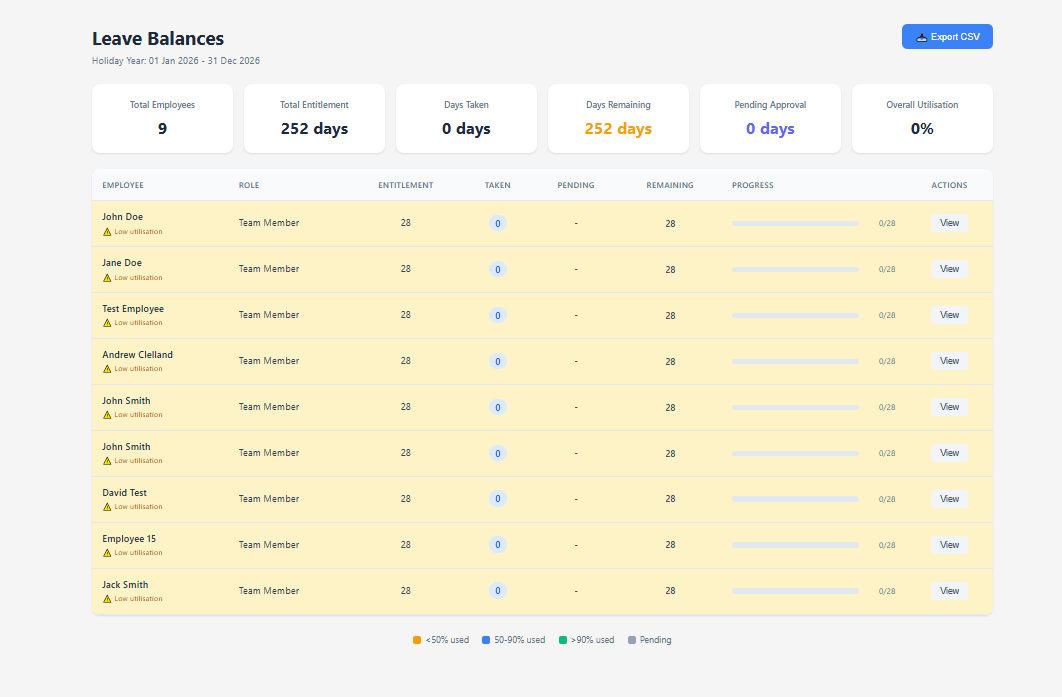
Leave balances — remaining holiday entitlement per employee
Holiday Calendar — reached via the Leave Balances quick actions
Absence & Fit Notes
Employees request planned holiday through the Employee Portal, using the same 3-step Request Time Off wizard covered in Time Off Categories above — Select Type, Enter Details, Review & Submit.
To record unplanned absence — sickness or otherwise — go to Time & Attendance → Absence Tracking → Record Absence.
Record Absence — date, reason, and duration
For sickness absence, a fit note toggle and return-to-work date capture the detail needed for both SSP and the Bradford Factor.
Fit note toggle and return-to-work date
Bradford Factor
Bradford Factor is reached via Time & Attendance → Absence Tracking — it sits alongside Record Absence and Absence History as one of that tool's quick actions. It turns an employee's absence history into a single score, weighting frequent short absences more heavily than one longer spell — useful for spotting a pattern worth a conversation rather than just totting up days off.
The formula
The score is calculated as B = S² × D, where S is the number of separate absence spells and D is the total days absent, both measured over a rolling 52-week period. Three short, separate absences are scored far more heavily than one absence of the same total length, because frequent unpredictable absence is more disruptive to a rota than a single longer spell.
The dashboard
The main Bradford Factor screen opens on five summary cards — one per level — each showing how many employees currently sit at that level, with the threshold score shown underneath.

Bradford Factor dashboard — level summary, search and filter, and an expanded employee breakdown
An employee's score
Clicking an employee in the table expands a breakdown showing the spells (S) and days (D) feeding the formula, the individual absence spells making up that total (or "No absences in this period" if there are none), and a recommended action based on which threshold level the score falls into.
The five levels and default thresholds
Scores are grouped into five levels, each with its own colour, label, and suggested response — these are starting guidance, not a fixed disciplinary procedure. The thresholds below are the system defaults and can be changed (see Settings, below):
| Level | Default threshold | Suggested response |
|---|---|---|
| No Concern | 0+ | Absence pattern within acceptable limits |
| Monitor | 50+ | Consider an informal discussion about attendance |
| Warning | 125+ | A first written warning may be appropriate |
| Serious | 400+ | A final written warning may be appropriate |
| Critical | 650+ | Consider dismissal proceedings |
Thresholds are configurable
Click Settings on the dashboard to adjust the Monitor, Warning, Serious, and Critical thresholds — No Concern isn't a separate setting, it's simply any score below the Monitor threshold. Each field shows its suggested response underneath as a reminder while you adjust it.

Bradford Factor Thresholds — Monitor, Warning, Serious, and Critical are each editable; No Concern is whatever falls below Monitor
There's no fixed legal definition of where these lines should sit, so this lets the thresholds reflect your own salon's absence policy rather than a generic default.
Searching and filtering
The full employee table can be searched by name and filtered down to a single level — useful for pulling up, say, everyone currently at Warning or above ahead of a review meeting.
The dashboard widget
A compact Bradford Factor widget is also available for the Time & Attendance Manager Tools dashboard, showing an at-a-glance count of how many employees need attention, broken down by level, with the top few flagged employees listed and a link through to the full dashboard.
Flexible Working
Employees submit a flexible working request through the Employee Portal.
Employee Portal — flexible working request
As Owner or Manager, you review and respond to it from Time & Attendance → Approve Requests → Flexible Working.
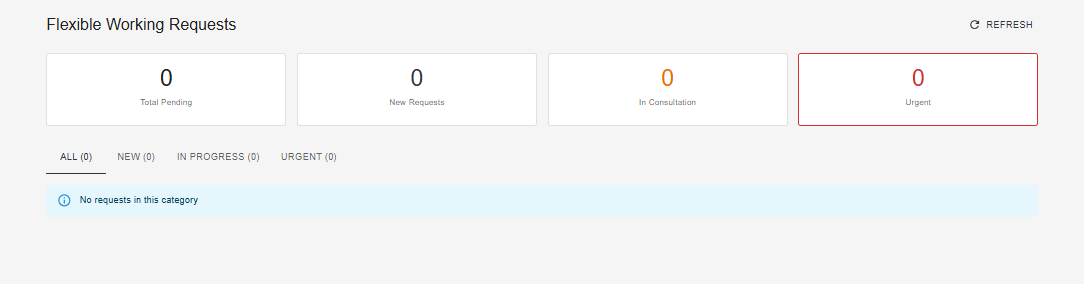
Manager review — respond to a flexible working request
Maternity
Go to Team → Maternity Tracker to see every maternity record currently being tracked. The dashboard shows four counters at a glance — Active Leaves, Actions Required, Returning Soon, and Pending Reminders — plus a reference panel of key statutory deadlines.
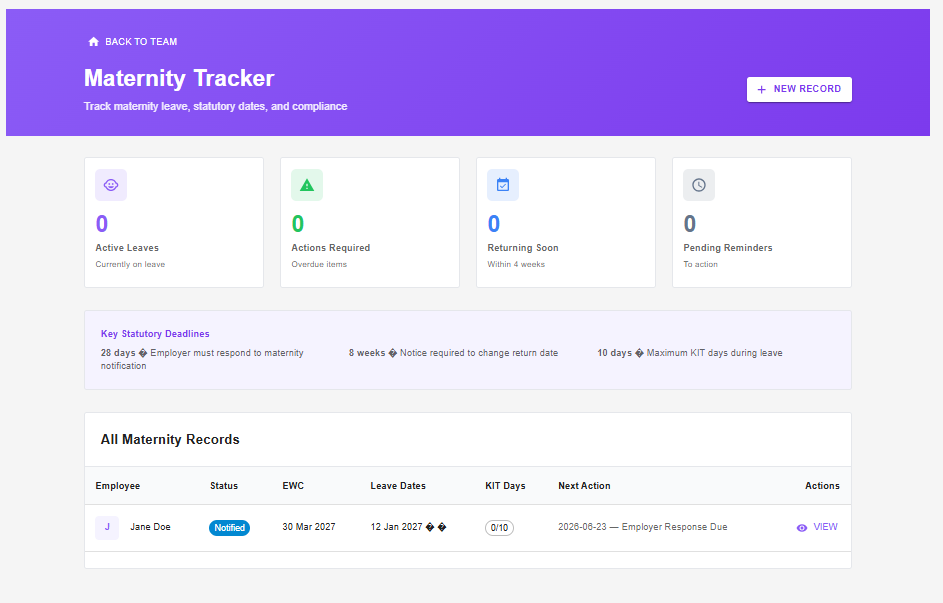
Maternity Tracker — counters, key statutory deadlines, and the full records table
Starting a new record
Click New Record and fill in the form — including the Expected Week of Childbirth (EWC), which the system uses to calculate the statutory dates shown on the record afterwards.
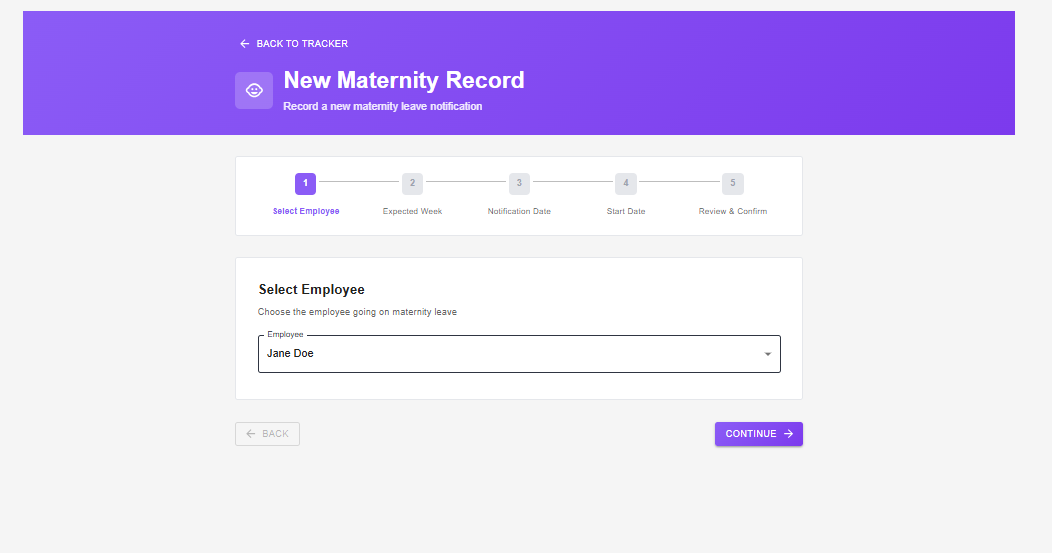
Add a new maternity record, including the Expected Week of Childbirth (EWC)
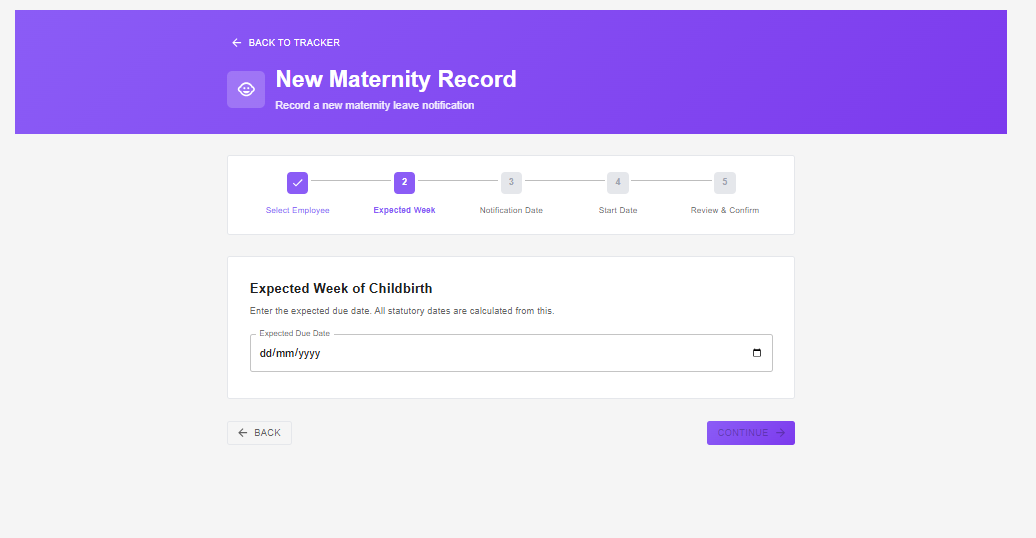
The EWC field, close up
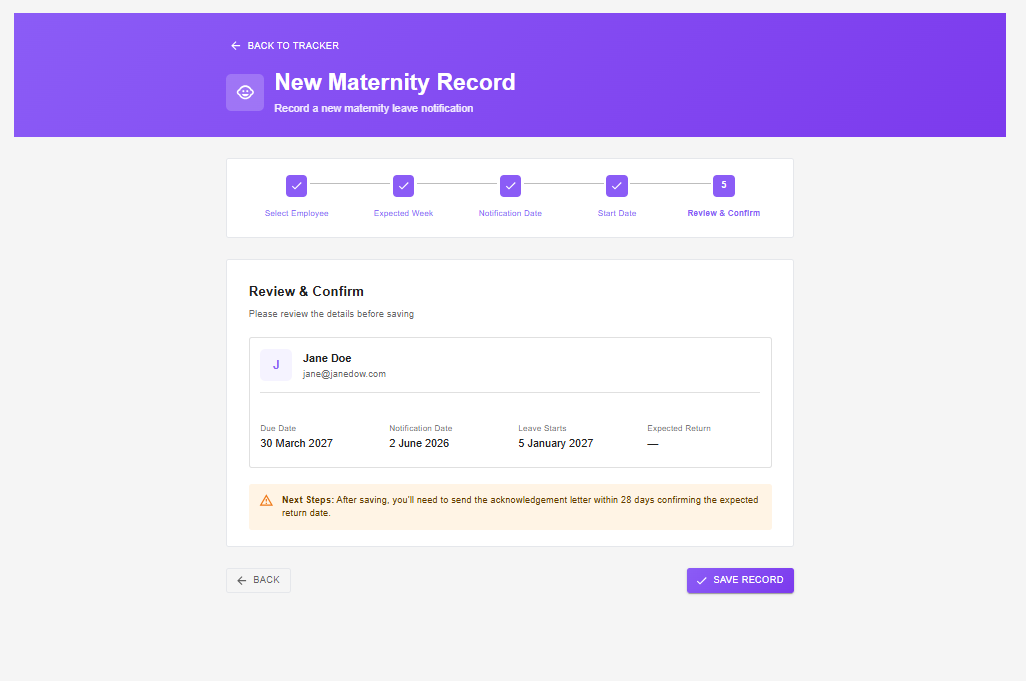
Confirmation after saving
The maternity record
Open any record to see its overview and a timeline of the key statutory dates and milestones.
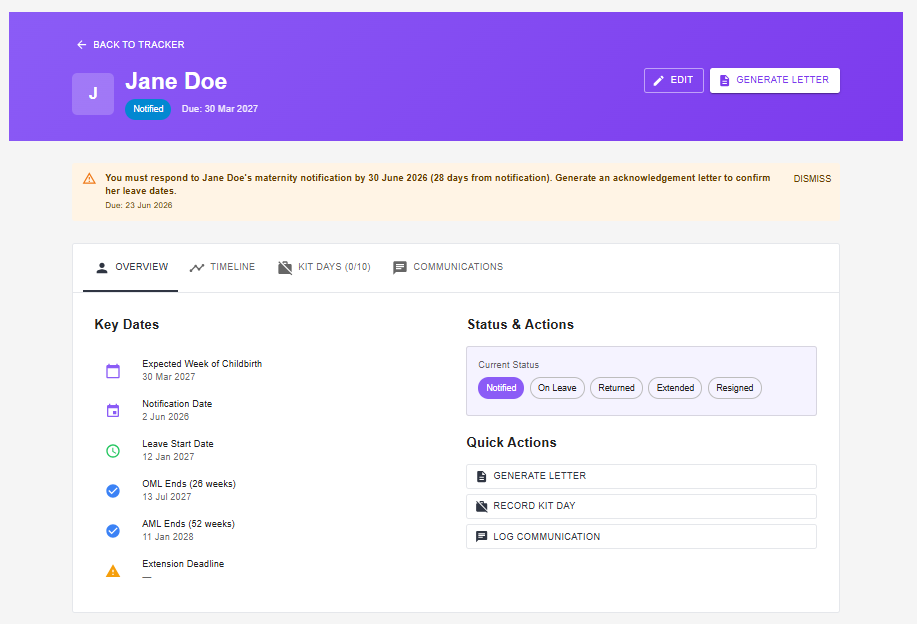
Maternity record — overview
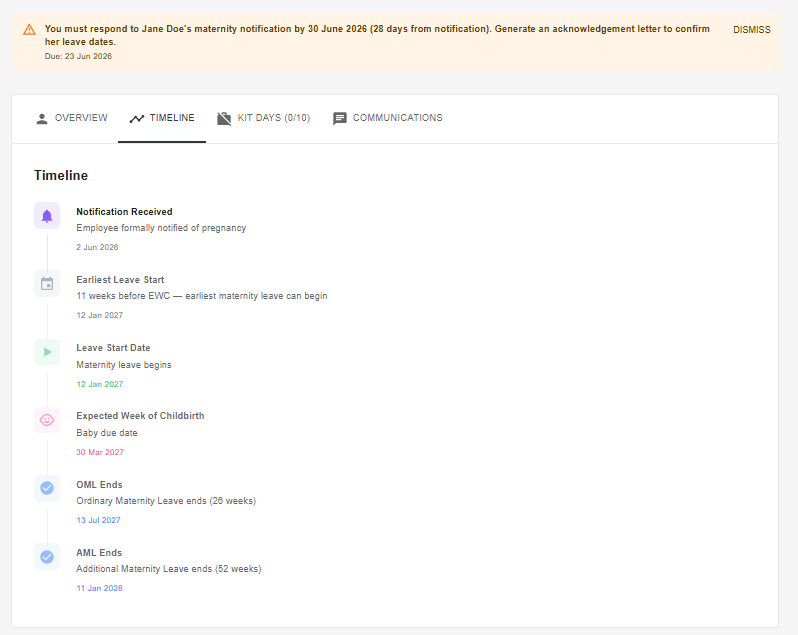
Maternity record — timeline of statutory dates and milestones
KIT days
Keeping In Touch (KIT) days let an employee on maternity leave work a limited number of days without it affecting their maternity pay or ending their leave early.
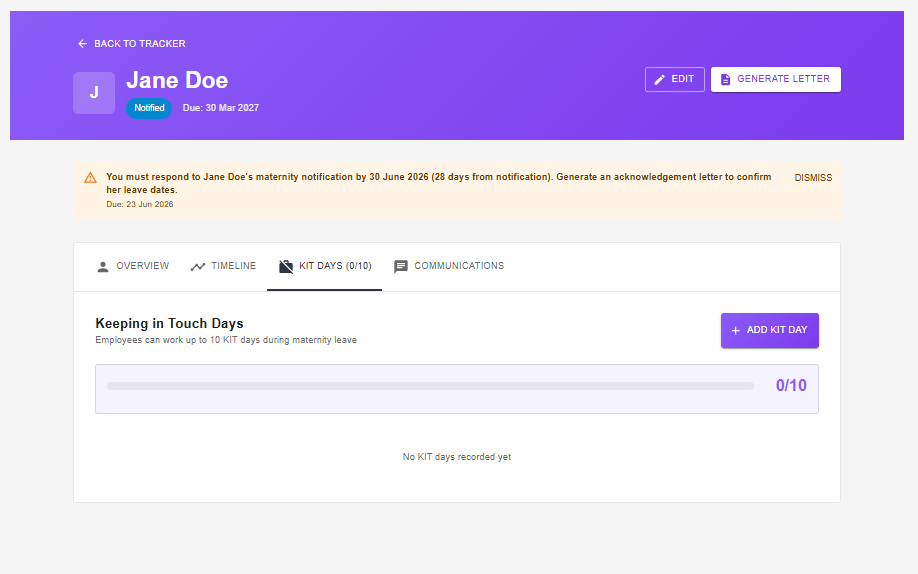
Add a KIT day worked during maternity leave
Generating letters
Generate the statutory letters required at each stage of the maternity process directly from the record.
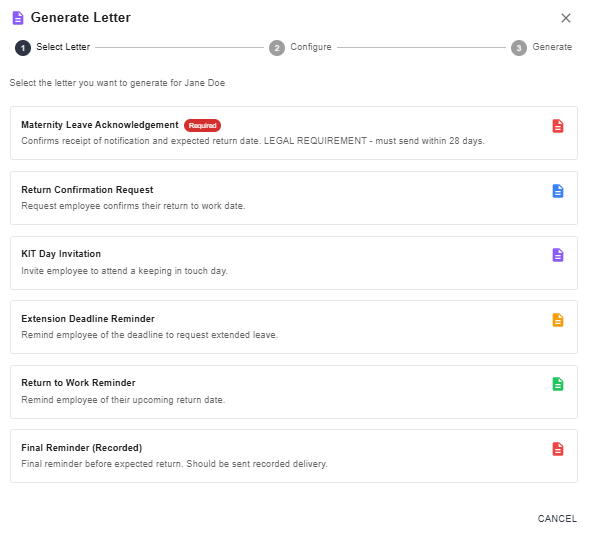
Generate a statutory maternity letter
SSP Calculator
Go to Time & Attendance → SSP Calculator to work out Statutory Sick Pay for an employee's sickness absence. The same tool links out to View Absences and SSP Rates Info as quick actions.
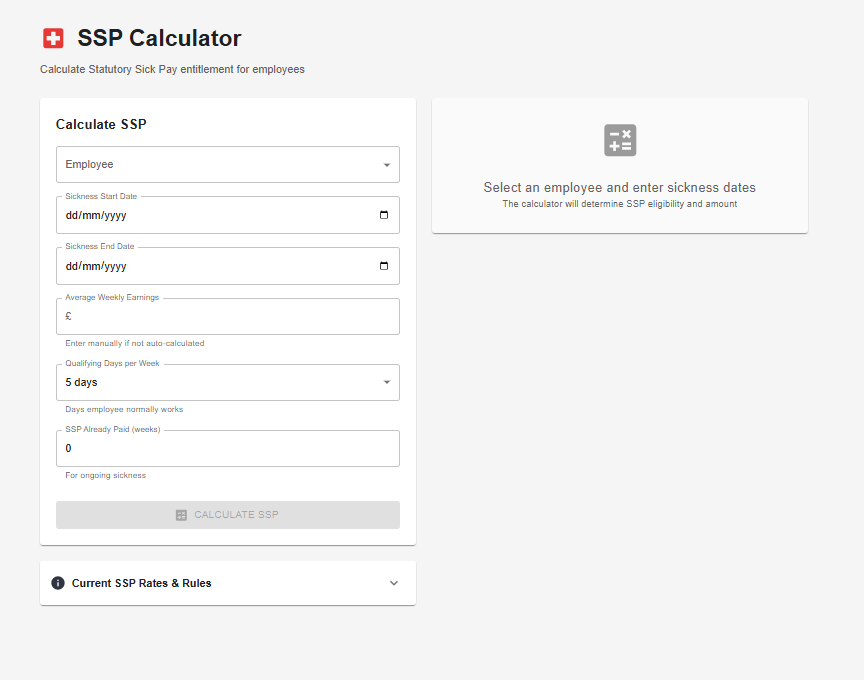
SSP calculator