Getting Started
Everything you need to go from sign-up to taking your first online booking.
Welcome to SalonLogic Solo
SalonLogic Solo is built for self-employed stylists. Online booking, appointment diary, client management, till, stock shopping list, and self-assessment tax tools — all in one place.
As you record sales, the system automatically calculates how much to set aside for VAT, income tax, pension, and holiday pay. Your profit figure reflects what you can actually spend, not just what's come in.
Set up in order
Work through the steps below before entering any operational data. Getting the foundations right means everything else — your booking page, your pricing calculator, your tax figures — works correctly from day one.
- ①Complete your company profile — salon name, address, contact details
- ②Set your tax details — UTR, NI number, VAT registration if applicable
- ③Add your services — before touching the pricing calculator
- ④Configure your booking page — slug, working hours, deposit rules
- ⑤Share your booking link — website, Instagram bio, Google Business
Your Account
When you first log in you'll land on the Solo Dashboard. This is your home screen — today's takings, your VAT threshold tracker, tax pot, pension reserve, holiday pay reserve, and profit after reserves all update here as you record sales.
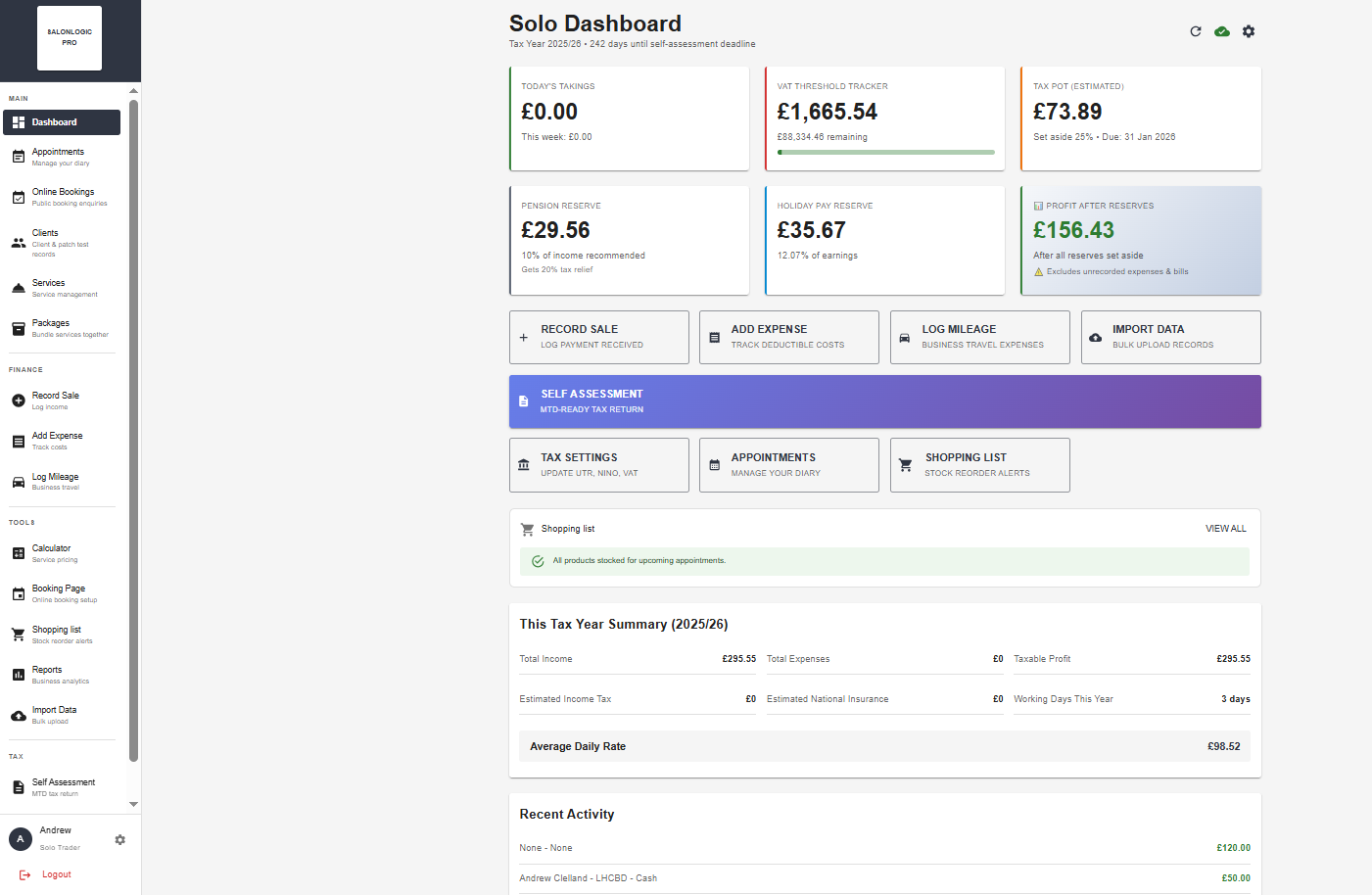
Solo Dashboard — live financial snapshot updated as you record each sale
Company Profile
Go to Settings → Company Info. Fill in your trading name, address, phone number, and email.
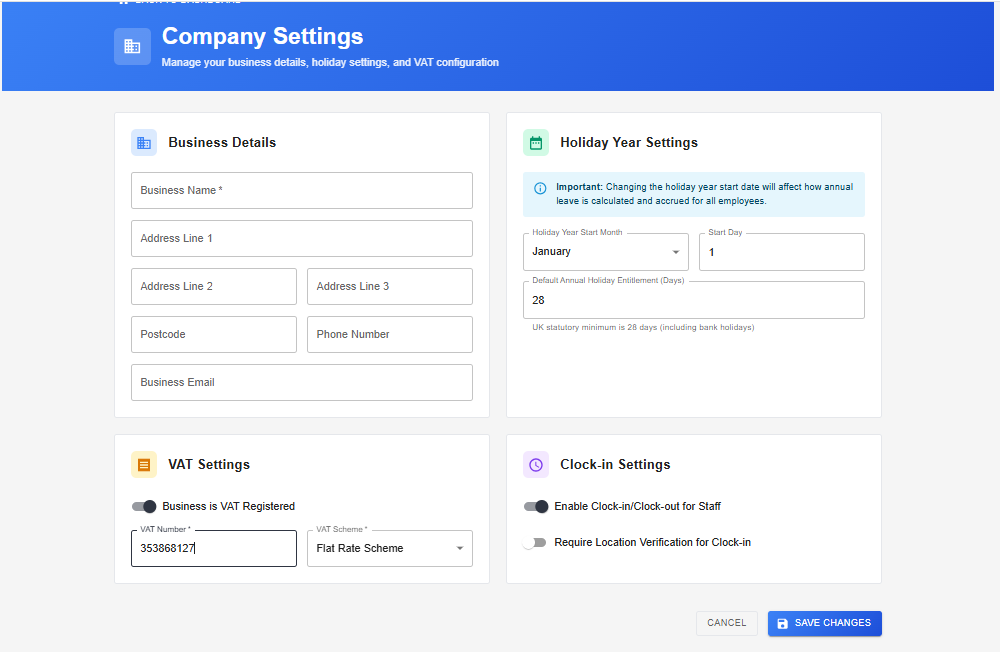
Settings → Company Info — your trading details
VAT settings
Go to Settings → Company Settings. If you are VAT registered, toggle Business is VAT Registered, enter your VAT number, and select your scheme (standard or flat rate).
Tax Settings
Go to Finance → Tax Settings and enter your UTR (Unique Taxpayer Reference) and National Insurance number. These are required for your self-assessment return and MTD ITSA submission.
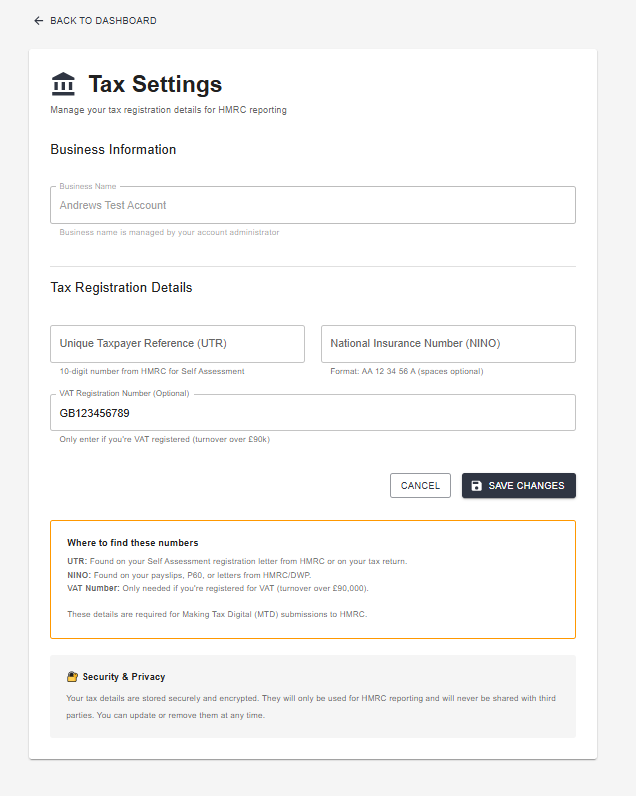
Tax Settings — UTR, NI number, and VAT registration number
Tax accrual setup
Go to Finance → Tax Accruals → Annual Setup to configure a percentage of turnover to set aside each month for income tax. The system calculates this automatically as you record sales.
Import Existing Data
If you are moving from another system, go to Data → Import to bulk-upload your existing records.
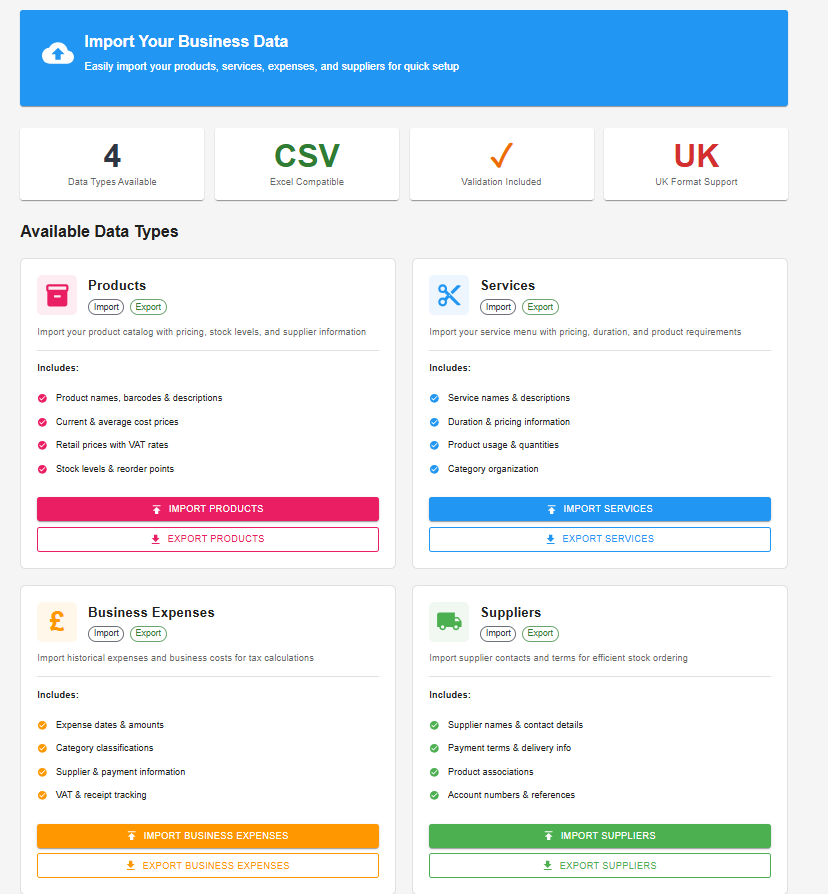
Import Data — products, services, expenses, and suppliers via CSV
Service import fields
| Column | Req? | Format | Example |
|---|---|---|---|
service_name | * | Name of the service | Full Head Highlights |
duration | * | Minutes (5–480) | 90 |
price | * | Selling price | 75.00 |
product_usage | - | ProductName:Quantity, comma-separated | Bleach Powder:50g |
Product import fields
| Column | Req? | Format | Example |
|---|---|---|---|
name | * | Product name | Wella Koleston 60g |
current_cost_price | * | Cost price ex-VAT | 4.50 |
unit_type | * | ml, g, uses, or each | ml |
retail_price | - | Selling price | 12.99 |
reorder_level | - | Stock quantity trigger | 2 |
Where to go next
Account set up — now build your service menu and get your booking page live.