SalonLogic ← Help Centre
SalonLogic Solo

Online Booking

Your public booking page, deposit rules, patch test enforcement, and everything clients see.

Your Public Booking Page

Your booking page is live at app.salonlogic.co.uk/book/your-slug. Clients can find and book you 24 hours a day without you picking up the phone.

The page shows your services and packages, available dates and times based on your working hours, and handles patch test enforcement automatically for colour services. No manual chasing required.

💡
Share your booking link in your Instagram bio, on your website, and on your Google Business profile. Every place someone might look for you online is a place you can put a direct booking link.

Your Booking URL

Go to Booking → Booking Settings. Your slug is the last part of your booking URL — for example, a slug of missionhair gives you app.salonlogic.co.uk/book/missionhair.
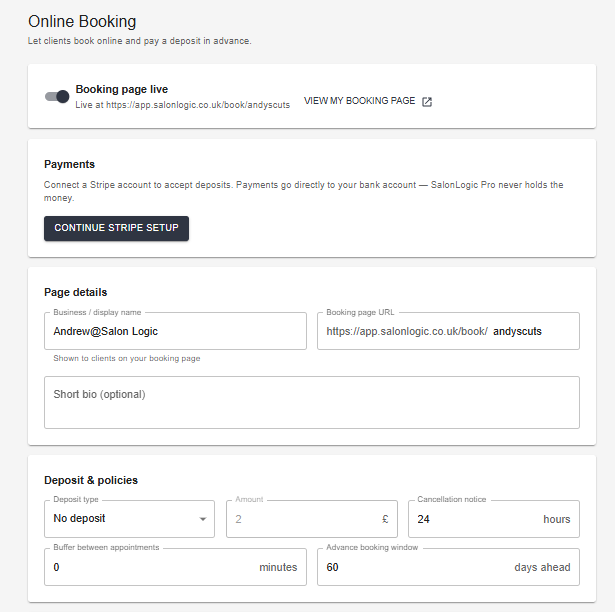
Booking Settings — slug, deposit settings, and cancellation window

Booking Settings — slug, deposit settings, and cancellation window

⚠️
Choose your slug carefully — changing it later will break any links you have already shared. Keep it short and close to your salon name.

Working Hours

Go to Booking → Booking Settings → Working Hours. Set the days you work and your start and end times for each day. Clients will only be shown available slots within these hours.
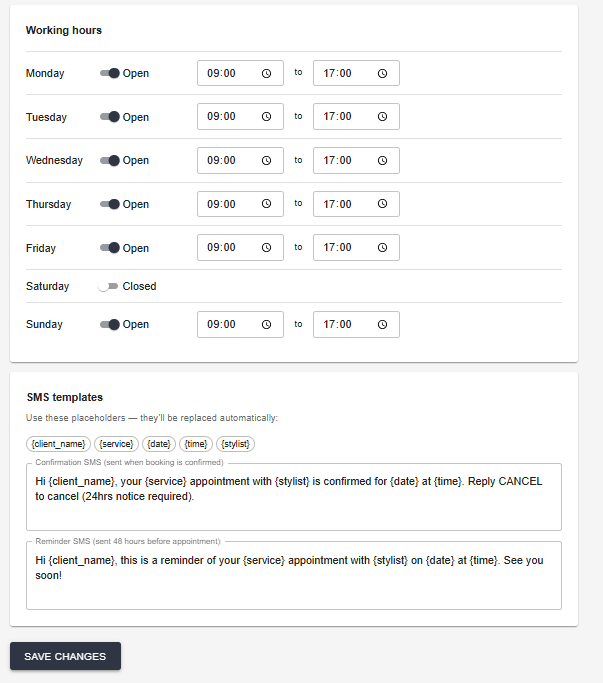
Working hours — set your available days and times

Working hours — set your available days and times

ℹ️
Working hours control what clients can book online. You can still add appointments manually in the diary outside these hours — for example, an early client you have arranged directly.

Deposits

Deposits reduce no-shows by asking clients to pay a portion of the service cost at the time of booking. The remainder is collected on the day.

Go to Booking → Booking Settings and configure your deposit rules. You can set a flat amount or a percentage, and apply different rules to different services or packages.

ℹ️
Deposits are powered by Stripe. You need to complete Stripe Connect onboarding in Booking Settings before deposits can be collected. The no-deposit booking flow works independently of this.

💳 Stripe Deposits — Activating Soon

The deposit infrastructure is fully built and tested. Live mode activation is in progress. No-deposit bookings work end-to-end right now.


Cancellation Window

The cancellation window is the minimum notice a client must give to cancel online. Set this in Booking → Booking Settings.

For example, a 24-hour cancellation window means clients can cancel up until 24 hours before their appointment. After that point, online cancellation is locked and they must contact you directly.

💡
If you take deposits, the cancellation window works alongside your deposit policy to protect your time. A client who cancels inside the window forfeits their deposit — set your window to match what you would reasonably expect to fill.

SMS Templates

Go to Booking → Booking Settings → SMS Templates to customise the messages sent to clients at booking, as a reminder, and when a patch test is required.

Booking Settings — Working Hours and SMS Templates, shown together on the same settings page

SMS templates — configured below Working Hours on the same Booking Settings page

Templates support placeholders that are replaced automatically when messages are sent:

{client_name}   {service}   {date}   {time}   {stylist}

📱 SMS Sending — Coming 2026

SMS delivery via Twilio is in development. Templates can be configured now and will activate when SMS goes live.


Confirmed Bookings

Go to Booking → Online Bookings to see all bookings from your public page. The list is split into tabs: Confirmed, Awaiting Patch Test, and Cancelled.
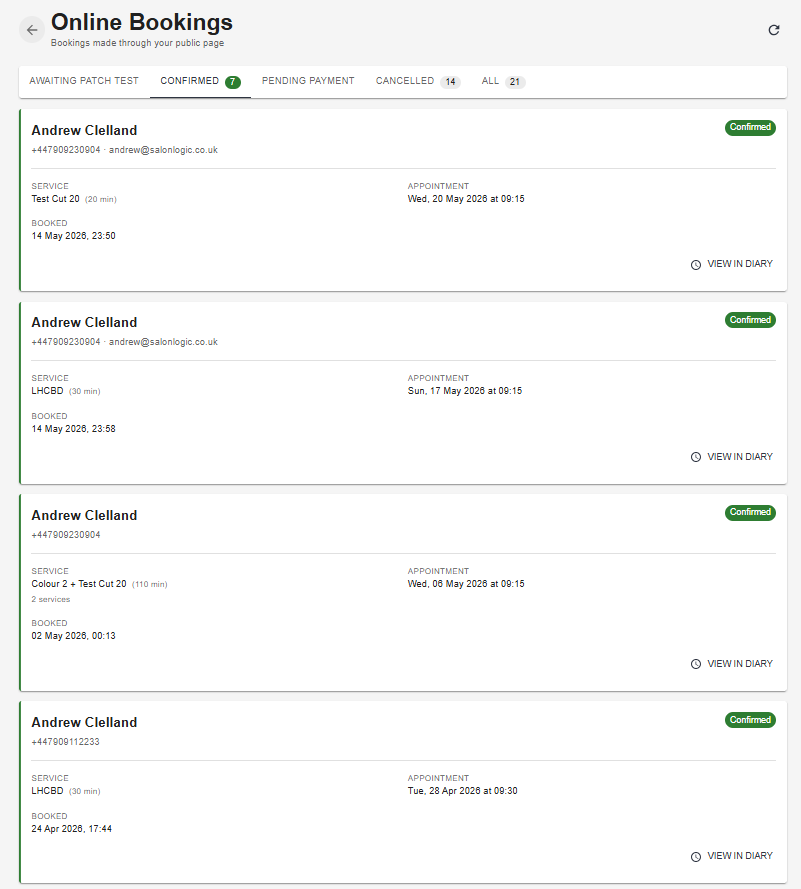
Confirmed bookings — service, appointment time, and booking date
Confirmed bookings — service, appointment time, and booking date

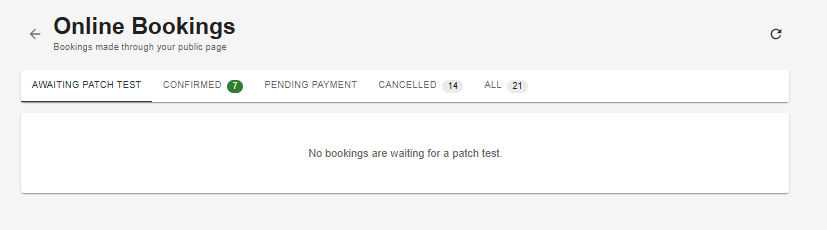
Awaiting Patch Test — bookings where the patch test requirement has not yet been met
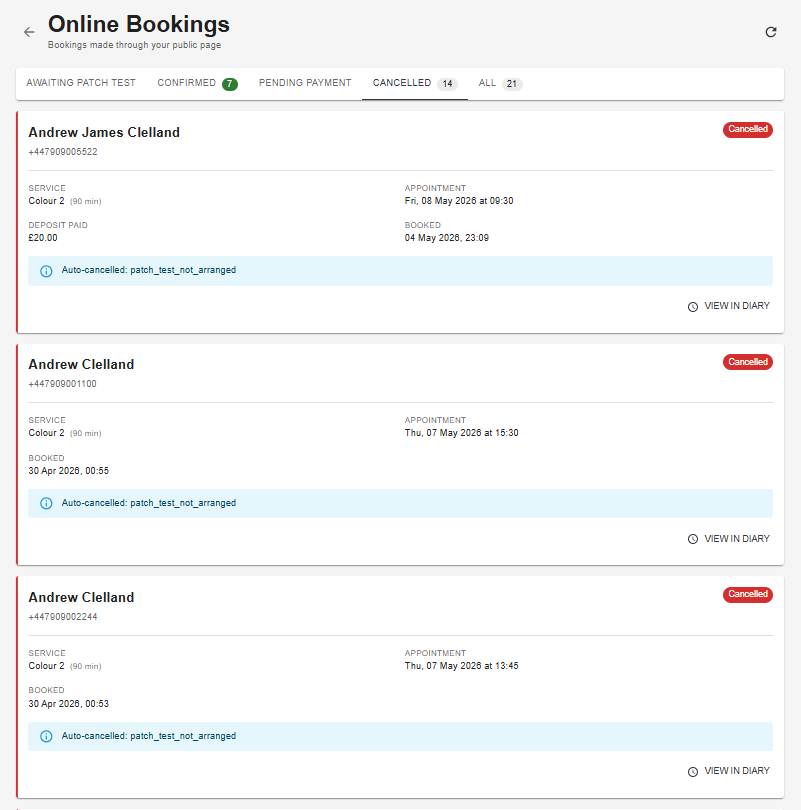
Awaiting Patch Test — bookings where the patch test requirement has not yet been met

Cancelled bookings — auto-cancelled appointments show the cancellation reason

Cancelled bookings — auto-cancelled appointments show the cancellation reason

ℹ️
Confirmed online bookings are automatically added to your diary. You do not need to manually transfer them.

Patch Test Enforcement

For any service marked as requiring a patch test, the system automatically handles the full enforcement flow — without you needing to do anything.

What happens automatically

1
Client books a colour service online — a patch test notice is shown on screen at the time of booking
2
Booking is created with Awaiting Patch Test status — visible in your bookings list
3
48 hours before the appointment, if no valid patch test is on file for that client, the booking is automatically cancelled
4
The client is notified of the cancellation with the reason
5
A full audit record is created — the booking, the notice shown, and the cancellation with timestamp
💡
Patch test disputes are one of the most common difficult conversations in the salon. This system removes you from that conversation entirely — the client was shown a notice at the time of booking, received a cancellation notice with the reason, and the record shows exactly what happened and when. Computer says.
⚠️
To record a patch test for a client, open their record in Clients and add the patch test result. Once a valid test is on file the booking moves from Awaiting Patch Test to Confirmed automatically.

Sharing Your Booking Link

Your booking link is app.salonlogic.co.uk/book/your-slug. Put it everywhere:

1
Instagram bio — the single link in your bio, or use a link-in-bio tool if you have multiple links
2
Google Business Profile — add it as your booking URL so clients booking through Google go direct
3
Your website — a Book Now button on every page
4
Facebook page — add as your website URL or use the Book Now button feature
5
WhatsApp Business — include in your away message and business description

What Clients See

The public booking page walks clients through four steps:
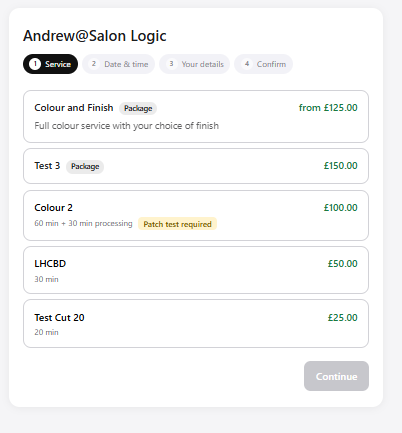
1
Choose service
All services and packages with prices and durations
2
Pick date & time
Available slots based on your working hours and existing diary
3
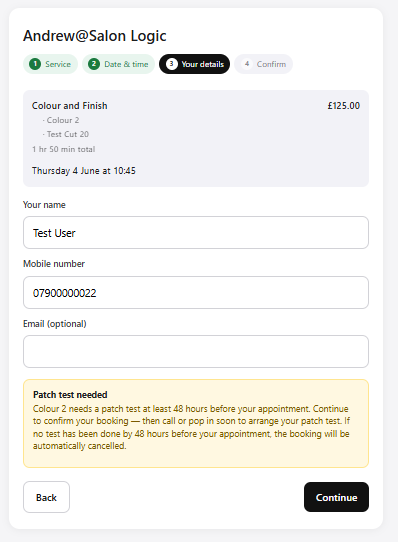
Your details
Name, phone, and email — plus patch test notice if applicable
4
Confirmed
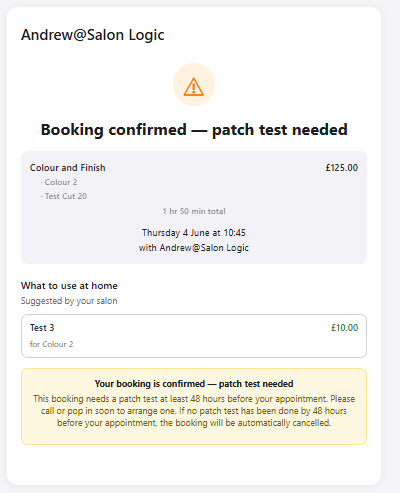
Booking summary with retail product recommendation
Step 1 — service and package list with prices

Step 1 — services and packages listed with prices and durations
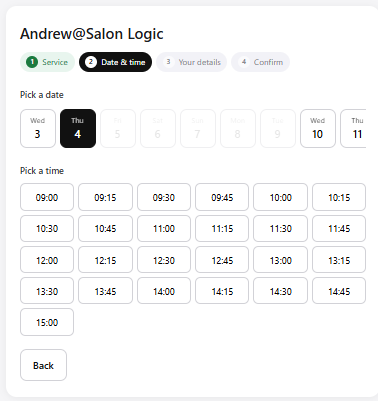
Step 2 — date and time picker showing available slots
Step 2 — date and time picker showing available slots

Step 3 — patch test notice shown automatically for colour services
Step 3 — patch test notice shown automatically for colour services

Step 4 — confirmation with retail product recommendation

Step 4 — confirmation with retail product recommendation

💡
The confirmation page shows a retail product recommendation based on the service booked — populated automatically from your product-to-service links. A client booking a colour sees the aftercare product you recommend at exactly the moment they are most engaged.

Packages

Packages appear in the same list as standalone services, labelled with a Package tag and showing a "from" price until the client has made their selections. When a client taps a package, it expands inline to show any choice slots they need to fill — fixed slots (where there's only one option) are pre-selected automatically. The Continue button stays greyed out until every slot has been filled, so no booking can be submitted with an incomplete package.
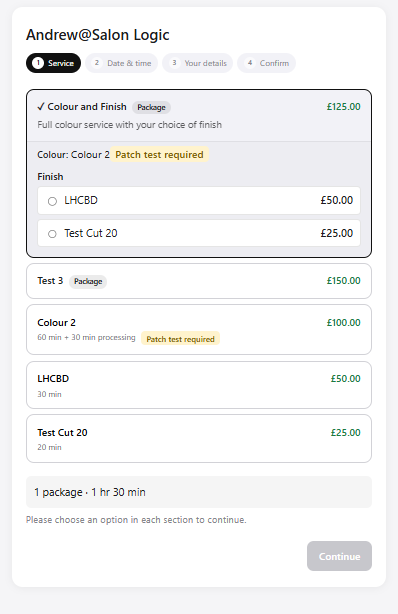
Package expanded — choice slot visible, Continue greyed out until an option is selected

Package expanded — the client must choose an option in each section before continuing
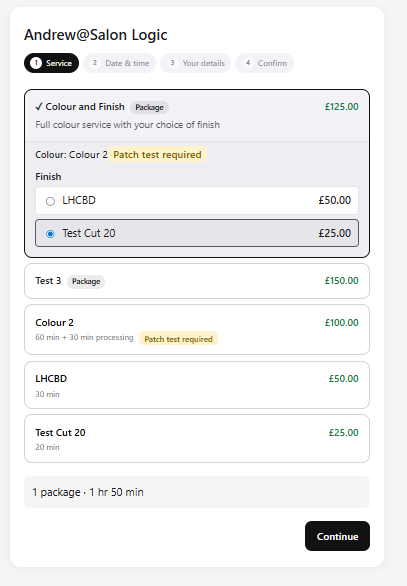
Package with slot selected — price resolved and Continue now active

Once all slots are filled the price resolves, the duration updates, and Continue becomes active

ℹ️
The total duration shown at the bottom of the service list updates automatically as the client makes selections — including any processing time for colour services. This is what the availability check is based on when the client moves to the date and time step.