Bills & Suppliers
Track what you owe each supplier, record payments, and keep on top of anything overdue.
Bills
Bills lives inside the Supplier Card rather than as its own area in the main navigation — every bill belongs to a specific supplier, so that's where you add, view, and pay them.
Go to Stock Management → Supplier Card and search for the supplier you want. The card has three tabs: Supplier Info, Expenditure, and Bills.
The Supplier Card — Bills Tab
Search for a supplier by name, then select the Bills tab. A red badge on the tab shows how many bills are currently on the card.
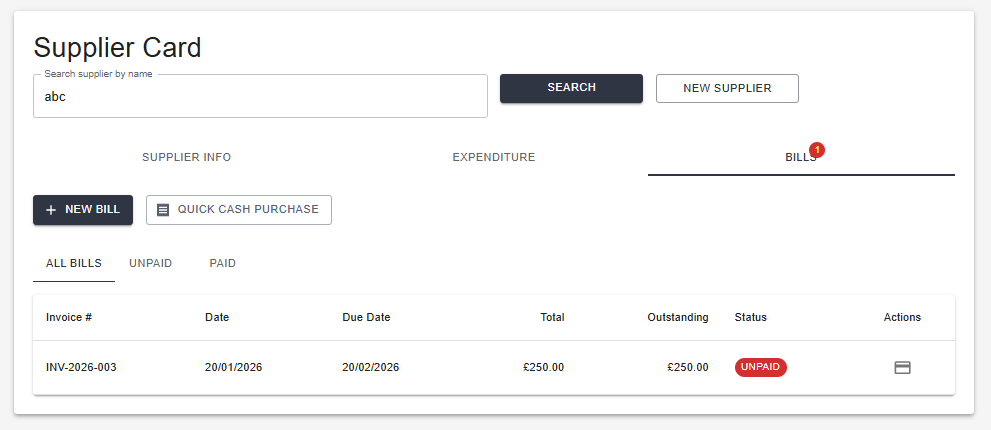
Supplier Card — Bills tab, with New Bill and Quick Cash Purchase actions above the list
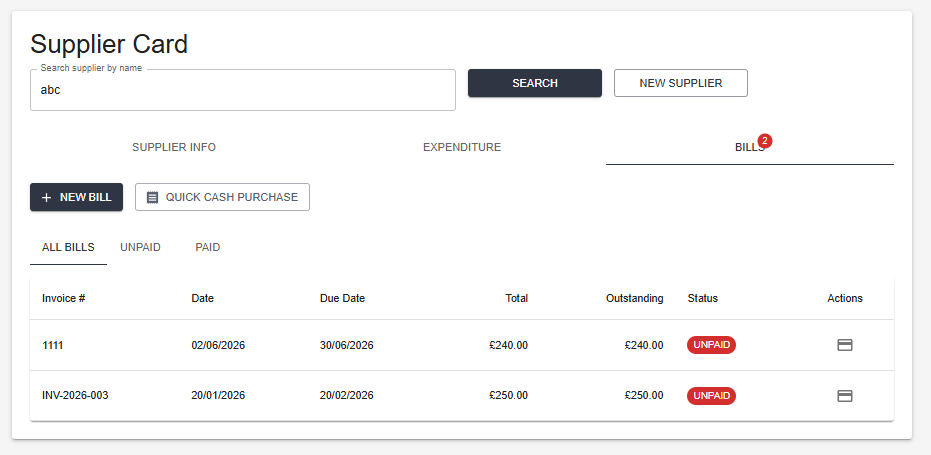
The same tab with more than one bill recorded against this supplier
Three sub-tabs filter the list: All Bills, Unpaid, and Paid. Each row shows the invoice number, date, due date, total, outstanding amount, and status, with an action icon to open that bill.
New Bill vs. Quick Cash Purchase
These cover two different situations, not a "full" and "lightweight" version of the same thing:
| Button | Use for |
|---|---|
| New Bill | A supplier invoice you owe money against — tracked with a due date, an outstanding balance, and one or more payments recorded against it over time |
| Quick Cash Purchase | A purchase that's already been paid for on the spot — no invoice number, no due date, no outstanding balance to track |

Quick Cash Purchase — for a same-day spend that's already settled, not an unpaid bill
| Field | Req? | Notes |
|---|---|---|
| Description | * | What was bought, since there's no invoice number to refer back to |
| Amount | * | Total paid |
| VAT Amount | - | Optional |
| Purchase Date | * | Defaults to today |
| Payment Method | - | Defaults to Cash — change it if paid another way |
Adding a Bill
Click New Bill on the supplier's Bills tab.
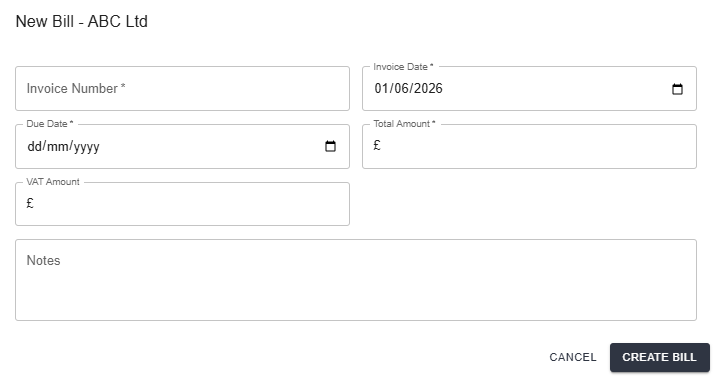
New Bill — the supplier name is already set from the card you're on
| Field | Req? | Notes |
|---|---|---|
| Invoice Number | * | The supplier's own reference for this invoice |
| Invoice Date | * | Defaults to today |
| Due Date | * | Used to calculate ageing on the Aged Payables Report |
| Total Amount | * | The full amount owed, including VAT |
| VAT Amount | - | Optional — leave blank if the supplier isn't VAT registered or the bill has none |
| Notes | - | Free text against the bill |
A bill can also carry line items, a payment history, and attachments — these show up on the bill's detail view once present, alongside the totals breakdown (subtotal, VAT, total, amount paid, and outstanding).
Recording a Payment
Open a bill and use its payment action to record money paid against it.
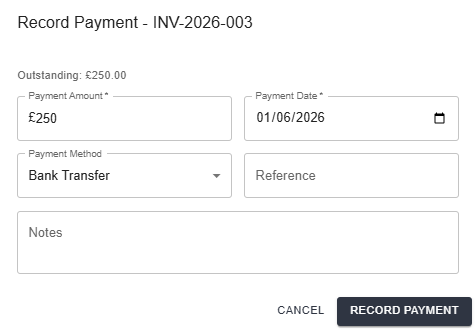
Record Payment — shows the outstanding balance before you enter an amount
| Field | Req? | Notes |
|---|---|---|
| Payment Amount | * | Defaults to the full outstanding balance — reduce it for a partial payment |
| Payment Date | * | Defaults to today |
| Payment Method | - | e.g. Bank Transfer, Cash, Card |
| Reference | - | Bank reference or transaction ID |
| Notes | - | Free text against the payment |
A bill can take more than one payment over time — its status moves between Unpaid, Partially Paid, and Paid as payments are recorded, and each one appears in the bill's Payment History.
Aged Payables Report
The Aged Payables Report gives a cross-supplier view of everything you currently owe, broken into ageing bands.
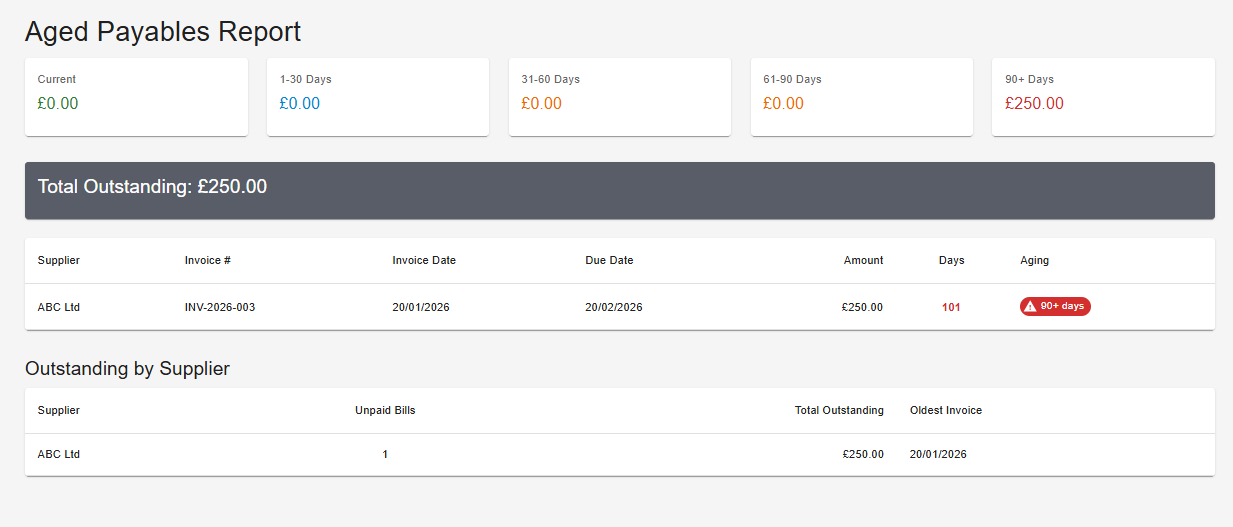
Aged Payables Report — outstanding totals by age band, the individual unpaid invoices, and a per-supplier summary
Five band cards (Current, 1–30, 31–60, 61–90, and 90+ days) sit above a Total Outstanding figure, followed by a list of every unpaid invoice with its aging flag, and an Outstanding by Supplier summary showing unpaid bill count, total owed, and the oldest invoice date per supplier.